
User guide › Selling
Selling
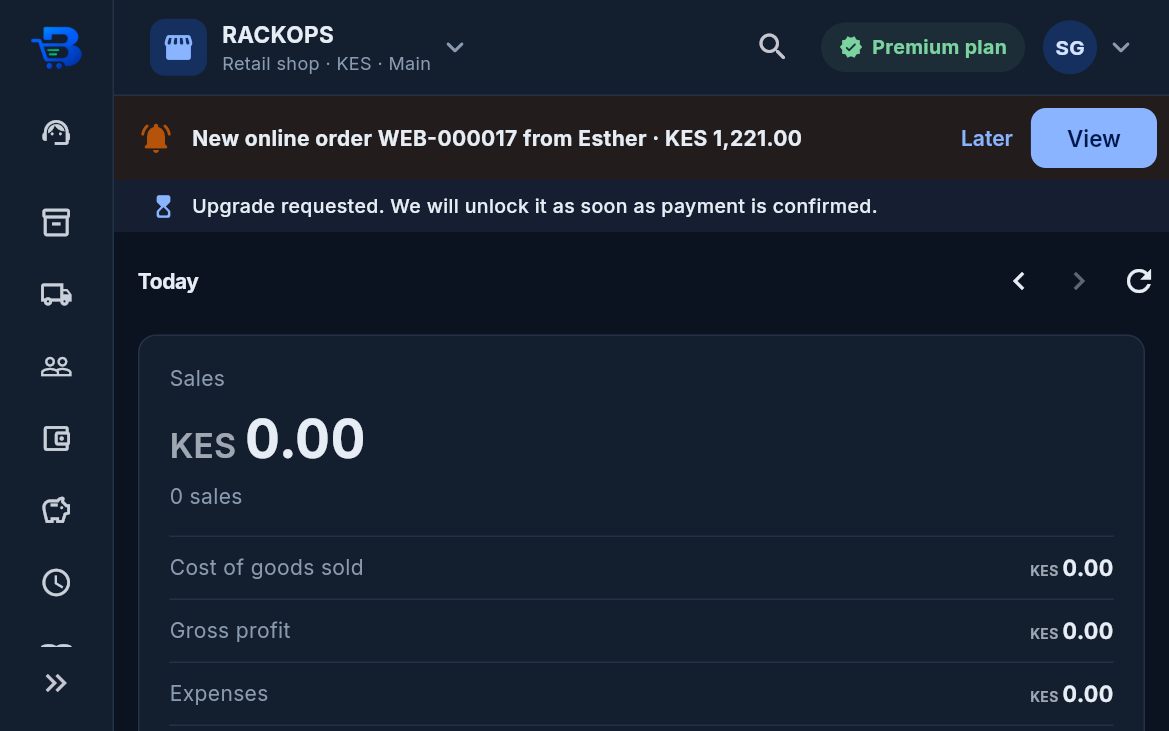
- Overview for cashiers: a cashier's Overview shows only their own sales for today: how much they sold, money received by method, their best sellers today and their latest sales, plus low-stock alerts. Past days, trends, profit, the shop's debts and stock values are only for the owner and anyone given reports.
-
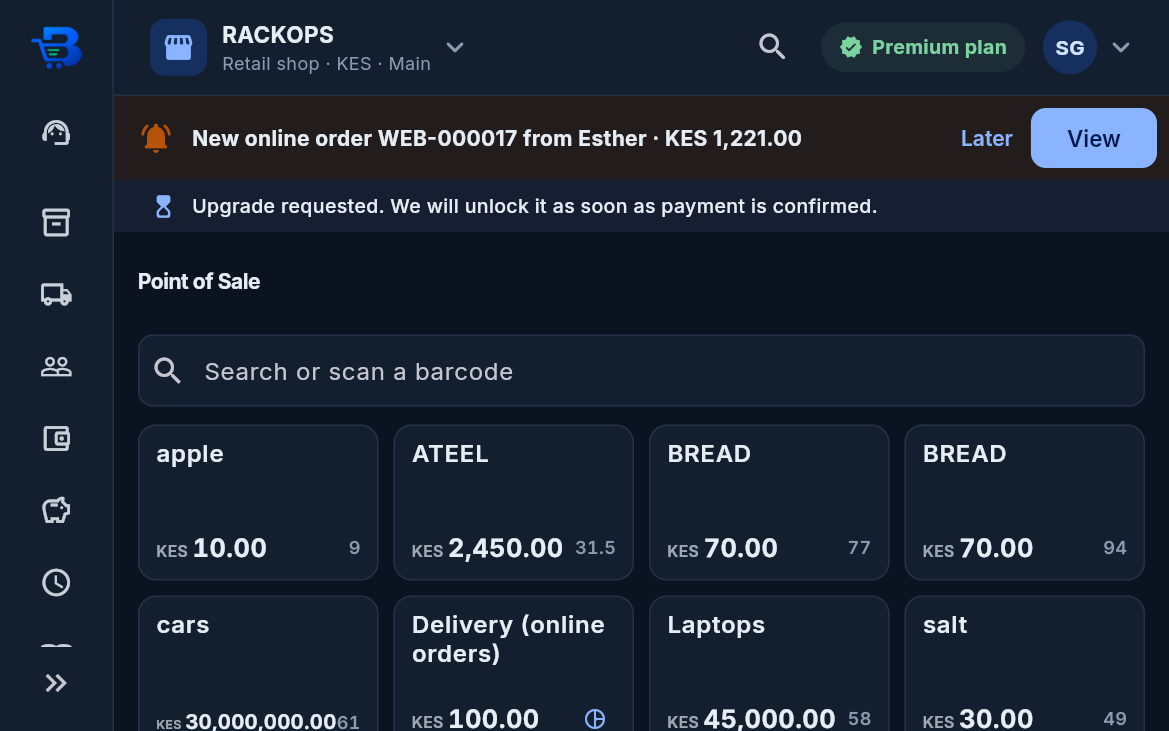
Point of Sale: tap products or scan a barcode, then Charge.
- Pay by cash, M-Pesa or another method, or Pay later (on credit, needs a customer).
- Cash + M-Pesa (split): for a KES 4,500 bill paid with KES 4,000 cash and KES 500 by M-Pesa, choose Cash + M-Pesa and type the cash part; the M-Pesa part fills in by itself. Type the cash handed over to see the change, then send the M-Pesa prompt for the M-Pesa part (or find it in your till, or type the code). The receipt shows both payments.
-
M-Pesa: there are three ways to take a payment.
- Ask the customer to pay (M-Pesa prompt): type their number, they get a PIN prompt for the amount on their phone, and as soon as M-Pesa confirms, the sale completes by itself with the M-Pesa code. Nothing to type. (Needs your till or paybill connected in Integrations.)
- Tap Find the payment in my till to pick it from payments that arrived.
- Type the code from the customer's message.
- Receipts and returns: every sale has a receipt. Returns are made from the receipt, and the stock goes back by itself.
- Promotions (owner, and managers): Promotions > New promotion. Choose % off or an amount off each item, on every product, some categories or chosen products, with a start and an end date (or end it by hand). The till shows the lower price with the old one struck through and applies it by itself; no cashier discount or approval is needed. Receipts show the offer's name. When two promotions fit a product, the bigger one is used. An amount off applies to whole items, not halves or quarters. What a promotion takes off can't be changed: end it and add a new one. Promotions work on the Windows app offline too.
- Promotions on the online shop: when creating a promotion choose Till and online shop, Till only or Online shop only. On the online shop page customers see the lower price, the old one crossed out and the offer; orders are priced with it. If an offer ends before an unpaid order is collected, the app asks to complete it at today's price; orders already paid online keep the price the customer paid.
- Who may give discounts: cashiers sell and take payment only. Discounts, promotions, returns and paying with points are for the owner, managers and the Customer Service role (Team & Roles). The owner can still give or take away single permissions per person.
-
Customer care and loyalty points (Starter plan and above): Customer care is the customer desk.
- The owner sets the rules under Points rules and turns points on. Common setting: 1 point for every KES 100 paid, 1 point = KES 1 off, usable from 100 points, for up to half of a bill; points lapse after 12 months without buying.
- Sign up: customer service, managers or the owner sign a customer up with their own mobile number, after the customer agrees. Only registered numbers earn points.
- Earning: at checkout type the member's number and tap Find; the sale earns points on what they pay. Or, after the sale, tap Add loyalty points on the receipt (within a day). Any cashier can do this.
- Paying with points: managers and customer service type the points to use at checkout. If the shop can send SMS, the customer gets a 4-digit code to read out first, so only the phone's owner can spend the points.
- Returns take back the points earned on what came back, and give back points that paid for it. Receipts show points earned, paid and the balance. Every change is kept in the member's points history; only the owner or a manager can correct points, with a reason.
- Points belong to the whole business: a customer earns them in one branch and uses them in any other.
-
Approvals: only the owner and managers approve. A promotion made by anyone else (customer service, say)
always waits for their OK, on every plan. On the Business plan and above, Approvals > Rules (owner only)
chooses which discounts, returns and refunds, and stock changes (from an amount, or always) need a manager's OK.
- When something needs approval, the cashier's screen says so and waits. Managers get a notification, open Approvals, see exactly what is asked (the products, quantities, amounts, the customer, the sale being returned and how the money goes back) and tap Approve or Reject (with a reason the cashier sees).
- Once approved, the sale or return completes by itself on the cashier's screen. If they closed it, they finish it from Approvals > My requests > Finish, or Withdraw it.
- Nobody approves their own request. The owner never needs approval. Requests nobody decides within a day, and approvals nobody uses within a day, expire.
-
Print or send: from any receipt, invoice, quotation or online order, tap Print (A4 page, PDF, or an 80 mm
receipt printer) or Send on WhatsApp or SMS. WhatsApp sends a picture of the real receipt (the same as the
printed one: the shop's details, items, offers, payments, loyalty points and the KRA QR code when connected), with
a short message, from your own WhatsApp.
- Android app: type the customer's number, tap Send, then Send on WhatsApp. Their chat opens with the picture attached: press Send. The number does not need to be saved in your contacts. (WhatsApp Business is used if it is on the phone.)
- iPhone app: tap Copy picture and open the chat. In the chat, tap and hold the message box, tap Paste, then Send.
- Computer: tap Copy picture and open WhatsApp, then press Ctrl+V in the chat and Send.
- WhatsApp always gets the picture, never a plain text. SMS sends a short text with a link to view, print or save it. For a walk-in customer, type their number; you can also save them as a customer.
-
Receipt printer (Android and Windows apps): Settings > Receipt printer, for that phone or computer.
- Bluetooth (phones): pair the printer in the phone's Bluetooth settings first (PIN often 0000 or 1234), then choose it.
- USB (Windows): install the printer's driver (or "Generic / Text Only"), then choose it from the list.
- Network / Wi-Fi: type the printer's IP address (hold FEED while switching it on to print it).
- Pick 58 mm or 80 mm, tap Print a test page. Then every receipt has Print receipt, or switch on Print every receipt after a sale. The cash drawer can open by itself on cash sales.
- On the website, keep using Print (A4 or 80 mm page).
- Held stock warning: if you add an item that is held for an online order, the till tells you, so you don't sell what a customer already ordered.
- Live updates: pages update by themselves. Sales on other tills, stock and payments appear within seconds.
← Getting started (owner) · All topics · Till shifts →
Download the whole guide (PDF)
Need help? Call or WhatsApp the BlueDuka team on +254 727 177 155.