
User guide › Online shop (Starter plan and above)
Online shop (Starter plan and above)
- Online Shop > Shop page & link (owner): switch on "Taking online orders", choose collection, delivery (with a fee and the areas you cover) and whether customers may pay on delivery or collection.
- Photos and descriptions: in Inventory, open a product > Photo and description. On a phone tap Take photo (or Choose photo), and type a few words customers should know (size, colour, what it is for). Customers see the photo on your shop and can tap a product to see it big with its description. Photos are made smaller and any camera details or location are removed before they are kept. A clear photo on a plain background sells best.
- Share the link on WhatsApp (status, groups), Facebook or Instagram. The QR code shows on the same page: Print QR poster prints a page with your shop's name, "Scan to order" and the code; Save QR picture keeps it as an image. Print it before you open the shop if you like.
- Customers see your products and prices, add them to a cart and order with their name and phone number, then collect at the shop or get it delivered. With M-Pesa connected in Integrations they pay online with a PIN prompt when they order; the payment is confirmed by M-Pesa by itself and shows on the order.
-
Delivery pin: at checkout the customer types their area or landmark and taps Find on map, or taps
Use my location (GPS), then drags the pin to their exact gate (or just taps the map on their place).
- A computer, or a phone with Location/GPS off, only knows where its internet line is registered (often another country, e.g. Germany). BlueDuka never uses such a location: it refuses anything outside the country, far from the shop, or rougher than 1.5 km, and asks the customer to tap their place instead.
- If the customer doesn't pin at all, BlueDuka finds the typed address on the map and marks it approximate so the rider knows to call.
- Delivering: open the order. The Delivery box shows the pin on a map, the address and either Paid or Collect KES …. Tap Directions for Google Maps, or Send to rider: type the rider's number (it is remembered) and send on WhatsApp or SMS. The rider gets one clear message (customer, phone, address, map link, items, how much to collect) and a private rider page with the map, a Navigate button, Call and WhatsApp the customer. The rider page works for 7 days and shows only that delivery.
- The customer's receipt: their order page has a download button that changes with the payment: before paying it is the order ("Not paid yet"); once M-Pesa confirms it becomes a Payment receipt marked PAID with the M-Pesa code and time; when you record the sale it becomes the full receipt, which they can also print. The page updates by itself when the payment arrives.
-
Alerts: when an order comes in, everyone who handles online orders gets a sound, a banner on every page
("New online order WEB-0004 from Wanjiru") and a number on Online Shop until someone confirms it. They also
get an email for new and paid orders (the owner can switch emails off in Shop page & link).
- Notifications when BlueDuka is closed: in Settings > Notifications on this device tap Turn on notifications on each phone or computer browser. New and paid orders, approval requests and supplier replies then pop up even when the app isn't open.
- Shop location (owner, with delivery on): in Shop page & link, tap your shop on the map and Save location. Customers' maps open there, and pins far from your shop are refused.
- Rider's report: on the rider page the rider taps Delivered and says what they collected: cash (amount), M-Pesa (the code from the customer's message) or nothing. The order shows it, everyone handling orders is alerted, and record the sale is filled in with it.
- Never shown online: buying costs, stock values, other customers, staff. To hide a product, open it in Inventory and switch off "Show in the online shop".
-
Online sales are normal sales: they show in Sales (tagged Online, with a Till / Online shop / Invoices
filter), count in today's sales, reports, profit and the customer's history, and take stock off
the shelf like any till sale.
- Paid online: the sale is recorded the moment M-Pesa confirms, at the price the customer paid. Stock leaves the shelf then. The order stays open until you deliver or hand it over (mark delivered).
- Pay on delivery or collection: the items are held as soon as the order comes in. Inventory shows "2 held online" and the online shop won't sell them to anyone else. They leave the shelf when you record the sale at hand-over (or come back if the order is cancelled).
- Reports show Sales by channel (till, online shop, invoices, with each one's share) and Sales by category (with the online part), and Insights tells you what share the online shop brings and which category sells best online.
-
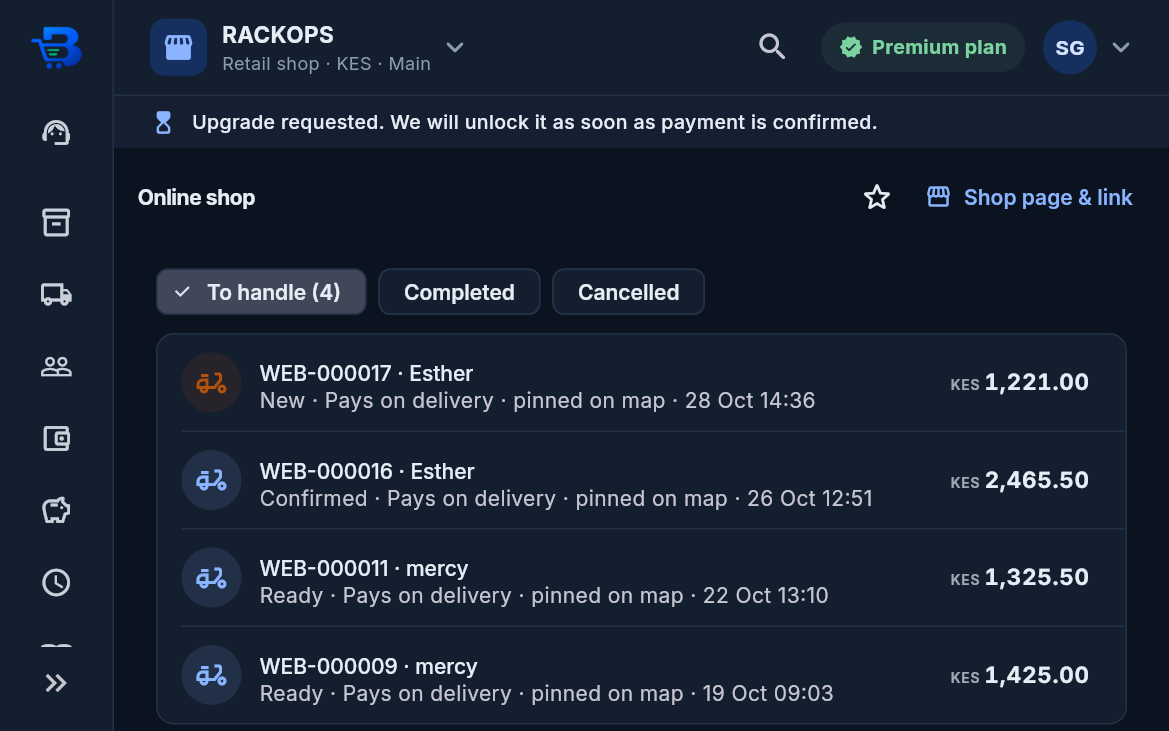
Online Shop lists the orders. For each order:
- Confirm it;
- mark it ready or out for delivery, with one tap to tell the customer on WhatsApp;
- when the customer has the goods, record the sale. Stock then leaves the shelf, and the money (M-Pesa paid online, plus cash or M-Pesa taken at the door) goes into today's sales.
- If a price changed since the order, the app asks before using today's price. Cancelling needs a reason, which the customer sees.
- Cancelling a paid order: send the refund to the customer by M-Pesa first, then cancel and type the refund's M-Pesa code. BlueDuka reverses the sale (a return, refunded by M-Pesa) and puts the stock back in one step.
- The customer gets a private link to follow their order and to message the shop on WhatsApp.
← Stock and purchases · All topics · Staff time and pay (Business plan and above) →
Download the whole guide (PDF)
Need help? Call or WhatsApp the BlueDuka team on +254 727 177 155.