
User guide › Stock and purchases
Stock and purchases
-
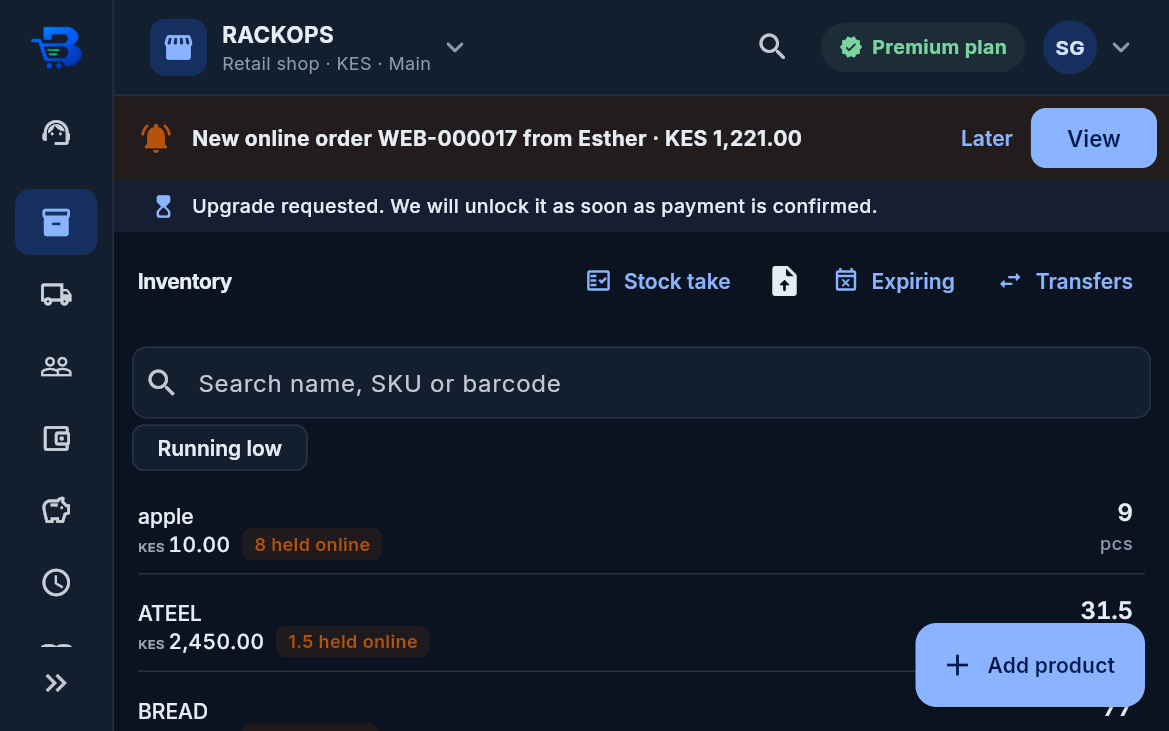
From each product you can:
- receive deliveries;
- count stock;
- adjust stock, with a reason.
- Selling in parts (e.g. a steel tube by the half): when adding a product, tick Half, Quarter or Eighth and set each part's own price. At the till, tapping it asks Whole, Half or Quarter. The part's price is charged and stock goes down by that fraction (3 halves = 1.5 tubes). Receipts show "3 × Half".
- One product per name: adding a name that exists offers to add stock to it, or to restore it if it was deleted.
- Deleting a product (owner, managers, stock controllers): open it and tap Delete product. It disappears from the till, lists and online shop. Past sales keep showing it. If it was never stocked or sold, it is removed completely.
- Low-stock alerts show what to reorder.
-
Expiry dates (food, drinks, medicine, cosmetics): turn on "Track batches & expiry dates" on the product.
- Each delivery then asks for the expiry date on the pack, and a batch number if it has one.
- Sales take stock from the batch that expires first. Returns go back into the batch they came from, and transfers keep the batch and its date.
- Inventory > Expiring lists what has expired or expires soon, what it is worth and a suggested discount (10% with a month left, 20% with two weeks, 30% in the last week). Set a clearance price or write the batch off from there. Write-offs follow your approval rules.
- The warning period (30 days by default) is in Settings.
-
Serial and IMEI numbers (phones, laptops, TVs, appliances): turn on "Track serial / IMEI numbers" on the
product.
- Serial numbers > Record units in: scan each unit's number when it arrives (a scanner adds a new line after each), with the warranty. The stock count still comes from the delivery.
- At the till, checkout asks for the number of each unit sold: scan it, type it, or tap one in stock. The receipt prints it. A number never recorded on the way in is accepted and recorded as sold.
- Inventory > Find serial shows any unit: in stock or sold, to whom, the receipt and the warranty left.
- A return puts the unit back in stock (or marks it returned when it is not put back on sale). When only some units on a line come back, choose which.
- Sales made on the Windows app without internet, and online-shop orders, don't need the numbers.
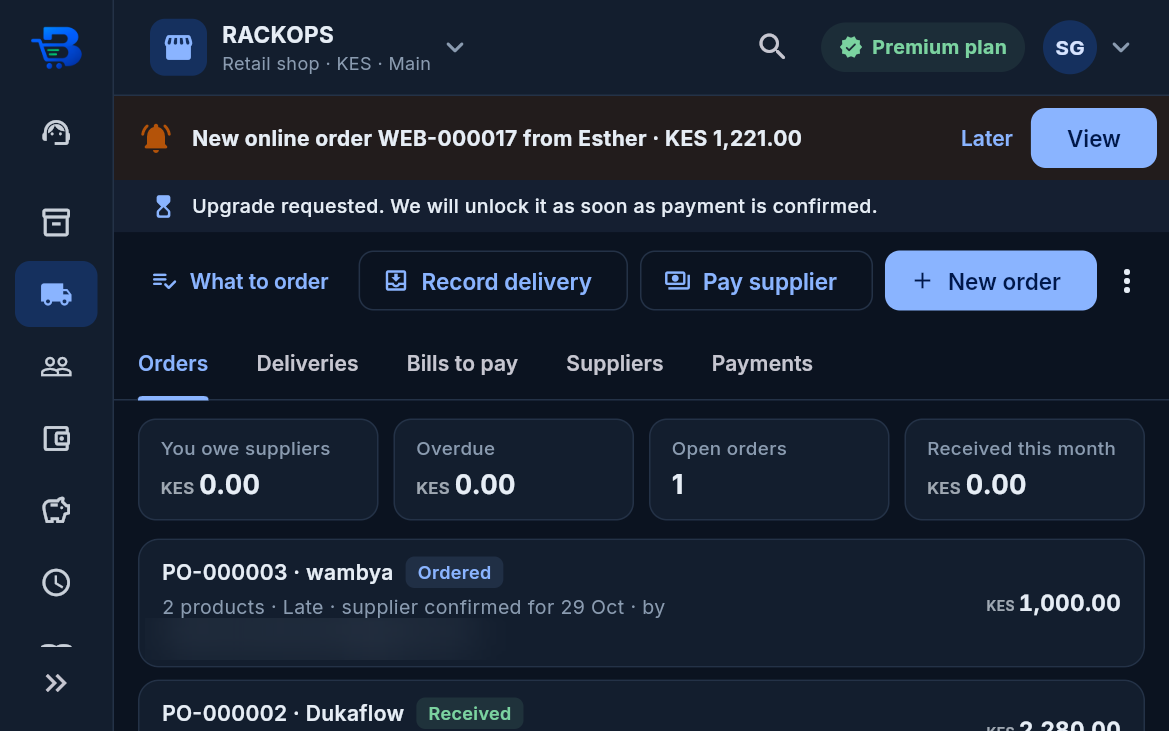
- Purchases: suppliers, purchase orders and goods received. Bills and supplier payments are for the owner.
- What to order (Purchases): products at or below their low-stock level, or that will run out within two weeks at the rate they sell, less what is already on order. They are grouped by the supplier who last delivered them, with that delivery's cost. Tap Make order, check the quantities, and place it.
- Send to supplier: WhatsApp (a picture of the order, plus the link to reply), SMS or email the order's link. The supplier opens the link without an account, prints it or saves it as a PDF, and replies: confirm with a delivery date, or can't supply with a reason. The order shows "seen", "confirmed for 14 Oct" or "can't supply", and Late once the date passes without delivery.
- When the goods arrive, Receive goods on the order: stock goes up, and a supplier bill is created.
- Several branches: stock is kept per branch, and you can move stock between branches.
← Customers and debts · All topics · Online shop (Starter plan and above) →
Download the whole guide (PDF)
Need help? Call or WhatsApp the BlueDuka team on +254 727 177 155.